
NuMaker-CM2053EL8
| 1. | 请确认电脑中至少已安装一种开发环境: |
||||
| - | KEIL MDK Nuvoton edition – Full Cortex-M | ||||
| - | VSCode | ||||
| 2. | 请依照使用的开发环境下载及安装最新版本的 Nuvoton Nu-Link Driver,安装时请勾选并安装 Nu-Link USB Driver。 | ||||
| - | 使用 Keil MDK 请安装 Nu-Link_Keil_Driver | ||||
| - | Please refer to the VSCode Quick Start Guide.pdf, when using VSCode. |
||||
| 3. | 下载及解压缩评估板支持软件包 Board Support Package (BSP). | ||||
| 4. | 硬件架设 | ||||
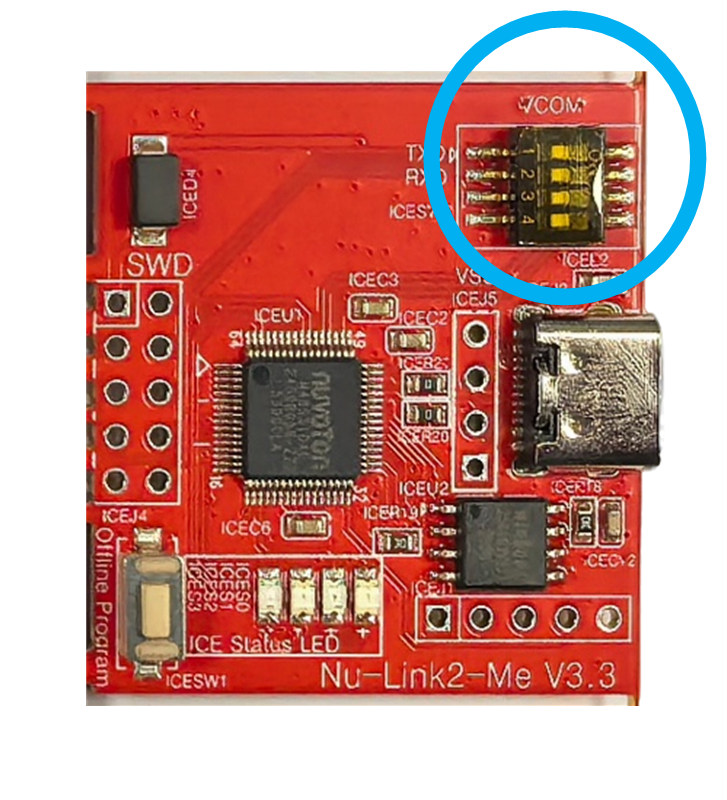
| (1) 将 Nu-Link2-Me VCOM 拨码开关的 1 及 2 切换至 ON,启动虚拟串口 (VCOM) 功能。 | |||||
|
|
|||||
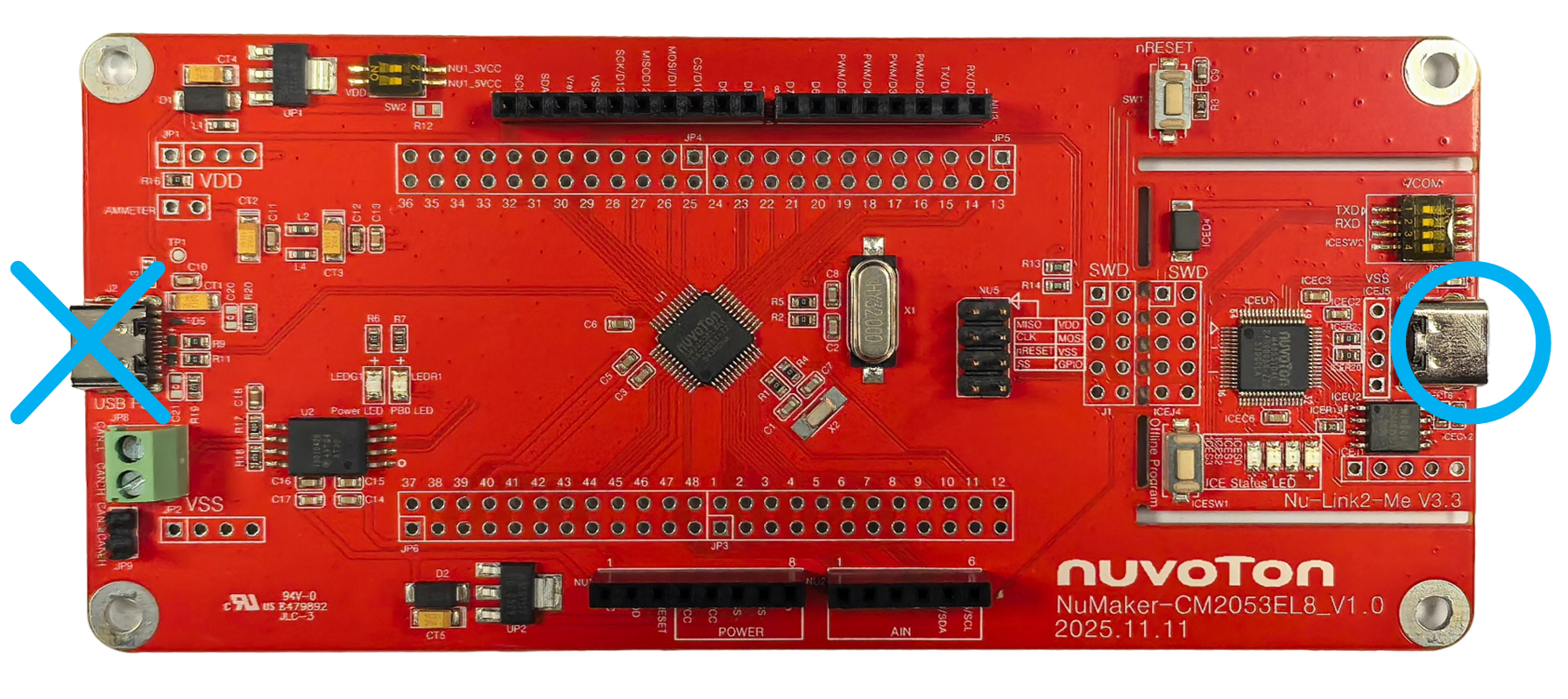
| (2) 通过 USB 传输线连接评估板 ICE USB 端口与计算机端 USB 端口。 | |||||
|
|
|||||
| (3) 在设备管理器中找到 Nuvoton Virtual Com Port。 | |||||
|
|
|||||
| 5. | 使用 Template 项目为范例,请参考以下路径在 BSP 中找到 Template 项目。 | ||||
| - | CM2053_Series_BSP_CMSIS_V1.XX.XXX |
||||
| - | CM2053BSP |
||||
| - | SampleCode |
||||
| - | Template | ||||
| - | Keil | ||||
| - | VScode | ||||
| 6. | 开启与执行项目,在个别开发环境下执行项目的方式请参考使用者手册。 | ||||
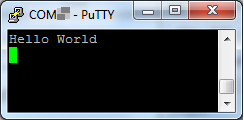
| 7. | 用户可在终端窗口看到以下结果: |
||||
|
|
|||||

 粤公网安备 44030502010001号