
搜尋
搜尋結果
搜尋Touch Key ,
共找到 55 筆
- 排序
- 依時間
- 依熱門度

創新產品
學習
影片長度 - 4:58
Nuvoton announced the latest ML51/ML54/ML56 microcontroller, built-in capacitive touch sensing, LCD driver highly integrated low power platform. Based on 1T 8051 core, running up to 24MHz, the power consumption in normal run mode is 80uA/MHz, lower than 1uA in power down mode the power consumption while power down with LCD on is lower than 20uA.
-
For more information, please visit Nuvoton Technology Website: https://bit.ly/3hVdcmC
Buy now: https://direct.nuvoton.com/
Contact us: https://www.nuvoton.com/support/technical-support/form/
Follow us on LinkedIn: https://www.linkedin.com/company/nuvoton-technology-corporation/
#Product #Learning #Basic #en

創新產品
學習
影片長度 - 2:43
Hello! Everyone! I am Nuvoton FAE Tim.
Today, I will show you ML56 Capacitive Touch Key Technology.
First introduce the Capacitive Touch Key Fundamentals.
The capacitance of the sensor without a finger touch is called as “parasitic capacitance”, CP.
Parasitic capacitance results from the electric field between the sensor (including the sensor pad and traces) and other conductors in the system such as the ground planes, traces, any metal in the product’s chassis or enclosure, etc.
The capacitance between the sensor pad and the finger is CF.
The total capacitance CT of the sensor is the sum of CP and CF.
Next, we will explain the ML56 Capacitive Touch Key Sensing Method.
ML56 implements two switching capacitor banks for injecting charges to CP (or CT) and CR.
CR is the parasitic capacitance of reference channel.
After touch key calibration, CP and CR are balanced with CB and CCB (comparator output is “low”).
Touch the sensing touch key which makes CT = CP + CF Now the negative input terminal voltage of the comparator is lower than positive side and comparator output is “high”.
ML56 touch key controller will increase CCB to CCB’ to balance CT and CR again (comparator output is “low”). A finger touch can be detected by checking the difference of CCB and CCB’.
By comparing the CCB’ shift level from CCB, the steady state to a predetermined threshold, the algorithm can determine whether the touch key is in ON (Touch) or OFF (No Touch) state.
That's all for today's video, thank you everyone!
If you have any questions, please contact us.
-
For more information, please visit Nuvoton Technology Website: https://bit.ly/3hVdcmC
Buy now: https://direct.nuvoton.com
Contact us: SalesSupport@nuvoton.comon.com
#Product #Learning #Basic #en

創新產品
學習
影片長度 - 6:27
Nuvoton provides a development tool for capacitive Touch Sensors. The best feature of the calibration tool is that it uses the GUI to configure and tune your design automatically. Besides, the tool can export the configuration parameters and import them to another. Not only can greatly shorten the development time of developers, but also shorten the time for mass production. This video will introduce how to use this development tool and the definition of parameter.
-
For more information, please visit Nuvoton Technology Website: https://bit.ly/3hVdcmC
Buy now: https://direct.nuvoton.com
Contact us: SalesSupport@nuvoton.comon.com
#Product #Learning #Basic #en

創新產品
學習
影片長度 - 5:0
Introduce the waterproof and noise immunity of ML56 touch key.
Hello! Everyone! I am Nuvoton FAE Tim.
Today, I will show you the waterproof and noise immunity of ML56 touch key.
First introduce the waterproof and noise immunity of ML56 touch key.
Good waterproof function, support finger touch with 2 mm depth water droplet.
IEC 61000-4-6 conducted noise immunity (CNI) with 10 Vrms noise voltage.
Next, we will explain the related parameter settings of the ML56 touch key, and first explain the touch sensitivity.
#Pulse Width (Touch key sensing pulse width time control)
Touch key sensitivity can be adjusted by setting Pulse Width properly, shorter Pulse Width setting comes with poor sensitivity and less power-consumption, vice versa.
Then explain the stability of touch performance, Part 1.
#Times (Touch key sensing times control)
Touch key raw data stability can be adjusted by setting Times properly, shorter Times setting comes with poor raw data stability and less power-consumption, vice versa.
Stability of touch performance, Part 2.
#IIR (IIR filter)
IIR filter can control the ratio of current raw data and previous one. User can enable IIR Filter to be against noise. It will increase the touch response time when enables IIR Filter.
Stability of touch performance, Part 3.
#Debounce (Touch key debounce)
Touch key stability can be adjusted by setting Debounce properly, the debounce times for touch key entry (on) and release (off) detection, shorter Debounce setting comes with faster touch response time, vice versa.
Stability of touch performance, Part 4.
#Trace Baseline (Baseline is generated by “Calibration”)
Touch key auto environment compensation is an algorithm that baseline tracking each touch key automatically at power-up and keeps compensating environment variation affects touch key performance during runtime.
Based on the above parameter description, the following introduces the waterproof and noise immunity parameter settings.
The first is waterproof parameter setting.
Good waterproof function, support finger touch with 2 mm depth water droplet. Touch key system parameters are shown in the table
Pulse Width = 500 ns
Times = 128
Next is the noise immunity parameter setting
IEC 61000-4-6 conducted noise immunity (CNI) with 10 Vrms noise voltage. Touch key system parameters are shown in the table.
Pulse Width = 2 us
Times = 128
IIR New = 6, Old = 2
Debounce Entry = 1, Release = 1
Then we use the ML56 NuMaker Board to show you the waterproof function of the touch key.
Dip the finger in water first, and then touch the touch key. Repeat the above actions, we can see that the touch key still works normally and is not affected.
Finally, we use the ML56 NuMaker Board to show you the noise immunity ability of the touch key.
Turn on the walkie-talkie first, and then interfere with the touch key at close range, we can see that the touch key still operate normally and is not affected.
That's all for today's video, thank you everyone!
If you have any questions, please contact us.
-
For more information, please visit Nuvoton Technology Website: https://bit.ly/3hVdcmC
Buy now: https://direct.nuvoton.com
Contact us: SalesSupport@nuvoton.comon.com
#Product #Learning #Basic #en
#Basic
#ML56
#NuMicro
#Pulse Width (Touch key sensing pulse width time control)
#IIR (IIR filter)
#Product
#en
#Trace Baseline (Baseline is generated by “Calibration”)
#Times (Touch key sensing times control)
#8051
#Learning
#Debounce (Touch key debounce)
#Nuvoton
#touch key IC
#noise immunity
#low power
#ML54
#waterproof
#MCU
#ML51

創新產品
學習
影片長度 - 3:12
Hello! Everyone! I am Nuvoton FAE Tim.
Today, I will show you ML56 Capacitive Touch Key PCB Design.
First introduce the Touch Sensor Channel Selection.
Touch Sensor Channels.
ML56 series supports up to 14 touch sensor channels.
#Reference Sensor
It is recommended to select one reference sensor at touch sensor channel TK7 or TK14.
Maximize the distance between the reference sensor and other signals to minimize crosstalk.
#Shield Electrodes
Put the shield electrode around the touch sensor to get better signal quality and waterproof capability.
Recommended to select shield channel at touch TK0, TK4 or clock out pins (P3.2 / P4.6 / P5.7).
Next, we will explain the PCB Layout Rules.
#Touch Key Shapes
Recommended to have a 10 x 10 mm sensor area for good touch key sensitivity.
Larger touch sensor electrode work better for thicker cover.
#Reference Sensor
Recommended to assign the reference key at touch channel TK7 or TK14.
Maximize the distance to other signals to minimize crosstalk.
Round shape electrode with 1 mm diameter size is enough for normal case.
#Ground Plane
It is recommended that the traces of the touch key have a good hatched ground plane surround.
It is recommended to have hatched ground plane under the touch keys.
Hatched ground plane with 6 mil trace and 50 mil grid.
#Shield Electrode
Put touch keys with shield electrode around which provides the same phase signal around touch keys.
Hatched shield electrode with 6 mil trace and 50 mil grid.
Shield electrode area needs to keep filled around the touch key in greater than 10 mm width.
Finally, explain the Touch Key Cover Thickness.
As the cover thickness increases, the touch key sensitivities will decrease.
Larger touch key size work better for thicker cover.
Recommended touch key diameter size with difference acrylic cover thickness as shown in the table.
That's all for today's video, thank you everyone!
If you have any questions, please contact us.
-
For more information, please visit Nuvoton Technology Website: https://bit.ly/3hVdcmC
Buy now: https://direct.nuvoton.com
Contact us: SalesSupport@nuvoton.comon.com
#Product #Learning #Basic #en

創新產品
學習
影片長度 - 6:6
Nuvoton announced the latest ML56 microcontroller, built-in capacitive touch sensing, LCD driver highly integrated low power platform. And provides capacitive touch sensor and LCD driver library. The solution is delivered through the API guide, which includes details on each function call, parameters and returns. Finally, this video provides an overview on how to develop a custom touch key and LCD application from the BSP release.
-
For more information, please visit Nuvoton Technology Website: https://bit.ly/3hVdcmC
Buy now: https://direct.nuvoton.com
Contact us: SalesSupport@nuvoton.comon.com
#Product #Learning #Basic #en

創新產品
學習
影片長度 - 9:3
Nuvoton announced the latest ML51/ML54/ML56 microcontroller, built-in capacitive touch sensing, LCD driver highly integrated low power platform. Based on 1T 8051 core, running up to 24MHz, the power consumption in normal run mode is 80uA/MHz, lower than 1uA in power down mode the power consumption while power down with LCD on is lower than 20uA.
0:00 intro
0:37 NuMicro 8051 Microcontroller
1:38 ML51/ML54/ML56 Product Portfolio
2:18 ML51/ML54/ML56 Features
3:27 Broad Scalability
4:05 Provide 4 Different Power Modes
4:44 LCD Driver Feature
5:52 Touch Key Features
7:05 Target Applications
#Product #Learning #Basic #en
#ML51 #ML54 #ML56 #8051 #LowPower #LCD-Driver #HumanMachineInterface #HMI #TouchKey-IC #HomeAppliance #EmbeddedWorld2022
-
For more information, please visit Nuvoton Technology Website: https://bit.ly/3hVdcmC
Buy now: https://direct.nuvoton.com
Contact us: SalesSupport@nuvoton.com

培訓
工具
學習
影片長度 - 5:53
Hello everyone, I am Morgan, the principal engineer of Nuvoton Technology. Today, I will show you how to connect to AWS IoT service using MbedOS on NuMaker-IoT-M487 development board
The sample code is on GitHub, the URL is https://github.com/OpenNuvoton/Mbed-to-AWS-IoT
To avoid typos, use keyword “OpenNuvoton” to search on google.
Find the Nuvoton on GitHub, and click it
On the Nuvoton GitHub page, use AWS as keyword to search the sample code: Mbed-to-AWS-IoT
Right click to copy the URL for later use.
Then enter the URL https://ide.mbed.com
After log in, make sure the NuMaker-IoT-M487 board has selected in the upper right corner. If not, please refer Nuvoton IoT Tutorial series “Get Started with Mbed OS”. There is detailed description of how to add a board.
Click the “Import” on the left of menu bar.
In the “Import Wizard”, click “Click here”
Please paste or key in the sample code URL to “Source URL:”,
Select Import as “Program”
Click “Import Name”, the project name “Mbed-to-AWS-IoT” will be filled automatically.
Then click “Import”.
After sample code imported, click “mbed_app.json” to open it.
To use Wi-Fi, you have to configure SSID and password to match your Wi-Fi AP setting.
In NuMaker_IOT_M487 session of mbed_app.json file, find the “wifi-ssid” to set your SSID. It is at line 44.
And then set password to “wifi-password”. It is at line 45.
Save it and click “Compile” to build the code.
It takes time to compile code, please wait.
You need an AWS account to use AWS IoT Core service. To create a thing, a policy, and certificates, then put the certificate to MQTT_server_setting.h file in the sample code. The sample code has included a certificate provided by Nuvoton for test only, so that you can quickly operate this example. If you don’t have an AWS account, it is recommended that you apply for an account and use your certificates in the example to observe the connection status on AWS IoT console page.
After completed, “Success” will appear in the compile output window.
The browser downloads the binary firmware file directly after a successful compiling. It will be saved in a default download folder. In Chrome, you can click download file and select “Show in folder”.
Then we connect the NuMaker-IoT-M487 USB port to your computer.
Please find the virtual COM port assigned for NuMaker-IoT-M487 in Device Manager. In the tutorial, the “Nu-Link Virtual Com Port” is COMx.
Then use your favorite terminal tool. Here we use Putty. Open the COMx port with 115200 baud rate.
And no flow control settings. Then “Open” it.
Back to the folder you just download the binary firmware file (Mbed-to-AWS-IoT.NUMAKER_IOT_M487.bin). Drag and drop the file to NuMicro MCU drive.
You will see the copying progress dialog box.
You can see the messages on terminal.
The device has acquired IP address from Wi-Fi AP, then successfully connect to AWS IoT and subscribe a topic.
Then press button (SW2) on board to send a message.
You can see the message published to server and received a message from server.
That’s all for this tutorial. Thank you for watching.
Welcome to subscribe to our channel.
If you want to get more information, please contact us “SalesSupport@nuvoton.com”
-
For more information, please visit Nuvoton Technology Website: https://bit.ly/3hVdcmC
Buy now: https://direct.nuvoton.com/en/numaker-iot-m487
Contact us: SalesSupport@nuvoton.com
#tool #training #learning #intermediate #en

影片長度 - 3:32
The NAU82011YG is a highly efficient, filter-free, mono Class-D audio amplifier with variable gain, which is capable of driving a 4Ω load with up to 2.9W output power. This device provides chip enable pin with extremely low standby current and fast start-up time of 4ms.
The NAU82011YG is ideal for battery driven portable applications. NAU82011YG features 91% efficiency, low quiescent current (i.e. 1.25mA at 3.6V) and superior EMI performance. The audio input of this device can be configured as either single-ended or differential input mode.
Target Applications:
• Portable Audio Device/Speaker
• Portable Navigation Device
• Tablet PC
Key Features:
• Audio Input
- Differential / Single-end input
- DC PSRR Typ.@95dB
- CMRR Typ.@63dB
• Audio Output
- Powerful Mono Class-D Amplifier
- 2.9W (4Ω @ 5V, 10% THD+N)
- 2.3W (4Ω @ 5V, 1% THD+N)
- Low Output Noise: 20 μVRMS
• Advance Feature
- Low Current Shutdown Mode
- Click-and Pop Suppression
- Integrated Image Reject Filter
- Integrated feedback resistor of 300 kΩ
• Operating Characteristics
- voltage range: 2.5 V to 5.5 V
- Temperature range: -40°C to 85°C
- Low Quiescent Current: 1.2mA@3.6V, 1.7mA@5V
• Package
- WLCPS-9
培訓
工具
學習
影片長度 - 5:0
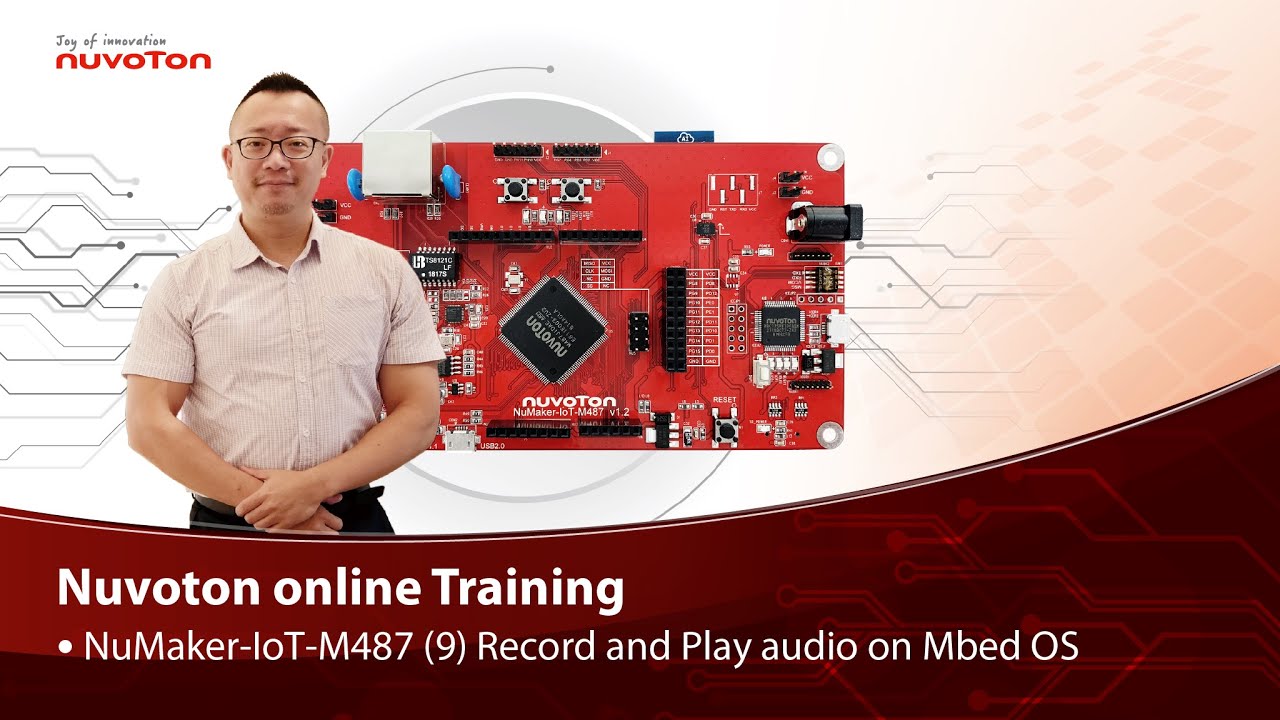
Hello everyone, I am Morgan, the principal engineer of Nuvoton Technology. Today, I will show you how to record and play audio with Mbed OS on NuMaker-IoT-M487 development board.
Open Chrome browser, and enter the URL https://ide.mbed.com to use the Mbed Online Compiler.
After log in, make sure that NuMaker-IoT-M487 board already selected in the upper right corner. If not, please refer Nuvoton IoT Tutorial series “Get Started with Mbed OS” which has a detailed description of how to add a board.
Click the “New” on the left of menu bar, a “Create new program” window will be displayed.
You can see that the Platform has been set to NuMaker-IoT-M487. In the Template, select the "NuMaker audio playback" for this tutorial. Then click OK.
Now you can see that the sample code has loaded on the page.
The sample code has three functions:
1. Record 10 seconds sound and save to Micro SD card
2. Play sounds stored in Micro SD card
3. Loopback. Record sound and play it immediately.
Click main.cpp to open it. Then scroll down to line 421. You can see the functions calls here. It set to loopback only.
Let’s do a little modification. Hit a key on console to start record 10 seconds then play it, and then do loopback.
printf("Press a key to start recording 10 seconds...");
getchar();
demo_record();
demo_play();
demo_loopback();
Save it and click “Compile” to build the code.
Compilation takes a while, please wait.
After the compilation is completed, “Success” will appear in the compile output window.
The browser downloads the binary firmware file directly after a successful compiling. It will be saved in a default download folder. In Chrome, you can click download file and select “Show in folder”.
Please plug an earphone commonly used for mobile phone in headphone jack on NuMaker-IoT-M487 board. For demonstration, we use a headphone splitter cable to connect a microphone and a speaker. Do not put the microphone and speaker too close to avoid feedback howling. Then connect the USB port to your computer and make sure the onboard LED lights up.
Back to the folder you just download the binary firmware file (NuMaker-mbed-AudioPlayback-example.NUMAKER_IOT_M487.bin). Drag and drop the file to NuMicro MCU drive.
You will see the copying progress dialog box.
Please find the virtual COM port assigned for NuMaker-IoT-M487 in Device Manager. In the demonstration, the “Nu-Link Virtual Com Port” is COMx.
Then use your favorite terminal tool. Here we use Putty. Open the COMx port with 9600 baud rate.
And no flow control settings. Then “Open” it.
Press “Reset” on board to run the firmware again.
Press a key on terminal to start record.
Speak for about 10 seconds, then your voice will be played.
That’s all for this tutorial. Thank you for watching.
Welcome to subscribe to our channel.
If you want to get more information, please contact us “SalesSupport@nuvoton.com”
-
For more information, please visit Nuvoton Technology Website: https://bit.ly/3hVdcmC
Buy now: https://direct.nuvoton.com/en/numaker-iot-m487
Contact us: SalesSupport@nuvoton.com
#tool #training #learning #intermediate #en
培訓
工具
學習
影片長度 - 8:37
NuMaker-IoT-M487 (5)
Connect to Pelion Device Management on Mbed OS
Hello everyone, I am Morgan, the principal engineer of Nuvoton Technology. Today, I will show you how to connect to Pelion Device Management with Mbed OS on NuMaker-IoT-M487 development board.
Because the demonstration needs to store certificate, a MicroSD card is required.
Open Chrome browser, enter the URL https://cloud.mbed.com/quick-start
If you didn’t use Pelion Device Management before, you need to activate your Mbed account to access Pelion. Click the “Activate your free access”. Then log in your Mbed account.
Click “Activate Pelion Device Management account“…
Select the “Start the Connect Tutorial”
Then scroll down to select NuMaker-IoT-M487 (WiFi)
--After selected, scroll down and click “Get started”--
If you have completed previous tutorial, the NuMaker-IoT-M487 board has been selected in your Mbed account.
Please click the “2.2” to import the Pelion Connect Tutorial into your Online Compiler.
It shows the import dialog box, please click Import.
Wait for a moment while importing the sample code.
Click “mbed-os-example-pelion” project name,
Then click “Pelion Device Management” on menu bar, select “Manage Connect Certificates” in pull-down menu to create a Pelion certificate.
You need to provide API key. You can create a new one here.
Log in your mbed account.
Accept
Then click New API key
Assign an API Key name
Click Close
After created an API key, back to online compiler,
Then click Manage Connect Certificate again.
API Key automatically filled here.
Click OK.
Click “Create”, then assign a name for the certificate.
Click OK.
Click the certificate just created to select it, then click OK.
The online compiler will automatically update source code with the selected certificate.
Click “Pelion Device Management” on menu bar again, select “Apply Update Certificate”. An “Update Certificates” dialog box appears. Create it.
Click Download Private Key and save it.
Please make sure that NuMaker-IoT-M487 board already selected in the upper right corner. If not, please refer Nuvoton IoT Tutorial series “Get Started with Mbed OS” which has a detailed description of how to add a board.
In order to use Wi-Fi, you have to configure SSID and password to match your Wi-Fi access point setting.
In the mbed_app.json file, the default Wi-Fi security set to WPA and WPA2 in “nsapi.default-wifi-security” field. Please modify the field “nsapi.default-wifi-ssid” to your Wi-Fi SSID
Then modify “nsapi.default-wifi-password” to your Wi-Fi password.
Click on “Compile” to build it. Have to wait for a while.
Then you can see the last message is “Success!” at the bottom of this page.
The browser will download the binary firmware file directly after a successful compiling. It will be saved in a default download folder or the folder based on your browser setting. In Chrome, you can click download file and select “Show in folder”.
Then we connect the NuMaker-IoT-M487 USB port to your computer and make sure the onboard LED lights up.
Let’s back to the download folder where you can see the binary firmware file (mbed-os-example-pelion.NUMAKER_IOT_M487.bin). Drag and drop the file to NuMicro MCU drive.
You will see the copying progress dialog box.
Please find the virtual COM port assigned for NuMaker-IoT-M487 in Device Manager. In the tutorial, the “Nu-Link Virtual Com Port” is COMx.
Then use your terminal tool. Here we use Putty. Open the COMx port with 115200 baud rate, 8 bits, 1 stop bit, none parity, and no flow control settings.
Then “Open” it.
Press Reset button on board to run again.
You can see the connection messages printed on terminal. It shows the board’s IP address obtained from the Wi-Fi access point, and the Endpoint Name.
Then you can see the device resource in Pelion Device Management Portal.
Log in Pelion Portal with the same Mbed account.
Click Device directory. Find the device ID which should be registered state.
Click the Device ID, it shows the Device details.
Click RESOURCES, find the resource 3200/0/5501. Click the resource.
Now, you can press keys in terminal to increase the counter. Or the counter automatically increase 1 by one second. The demo code also updates the counter to Pelion. You will see the value change in the graph.
That’s all for this tutorial. Thank you for watching. Welcome to subscribe to our channel. If you want to know more information, please contact us at SalesSupport@nuvoton.com
-
For more information, please visit Nuvoton Technology Website: https://bit.ly/3hVdcmC
Buy now: https://direct.nuvoton.com/en/numaker-iot-m487
Contact us: SalesSupport@nuvoton.com
#tool #training #learning #intermediate #en

前瞻應用
學習
影片長度 - 4:49
以新唐 NuMaker-IoT-M263A 為平台,使用 Mbed OS 進行開發,學習各種功能。觀看本片,您將學會使用 NuMaker-IoT-M263A 開發板配合 Mbed OS 與 Pelion 的範例程式連接 Pelion 裝置管理雲端。
哈囉大家好,我是新唐工程師 Miya,今天為大家介紹如何使用新唐 NuMaker IoT-M263A在 MbedOS 上連接 Pelion 雲端。
因為需要將下載後的憑證儲存於 MicoSD Card
所以操作前需要先將 MicoSD Card 置入卡槽中
。
接著請打開 Chrome 瀏覽器,輸入網址
https://cloud.mbed.com/quick-start
。需要先啟動免費帳號
點選中間上方 Activate your free access
,系統開啟的下一個頁面直接點 Log in ,
輸入您的帳號密碼登入
。啟動後選擇中間選項
Start the Connect Tutorial
,系統會自動轉到這個頁面,
往下拉選取 NuMaker-IoT-M263A
,系統將導入此頁面,
點選 2.1 將 M263A 加進線上編譯平台。加入後系統會自動新增確認頁面,
告知板子已被加入平台,
接著點選 2.2
將 mbed-os-example-pelion 加入線上編譯平台
,確認系統匯入 mbed-os-example-pelion 後
點 Import,
Load code 中
請稍待片刻。
Load code 完成後,可以看到系統
已將 Sample code 載到頁面裡了
,先點選 mbed-os-example-pelion program
,接著在 Online compiler IDE 環境的 menu bar 上,
到 Pelion Device Management 中,
下拉選取 "Manage Connect Certificates
" 來建立 Pelion 憑證
。在跳出的 API Key 小視窗
按一下 OK,點 Create
,幫您的連接憑證命名
輸入好之後,按OK
。點選剛才建立的憑證
再按 OK,
確認後點 OK 。
點 Pelion Device Management
,選取 Apply Update Certificate,
會出現 Update Certificates 視窗
,按Create,
點 Download Private Key
。
由於要使用 Wi-Fi
,所以需要將 SSID 及密碼
,改成可符合您連線環境的設定
。找到 mbed_app.json 裡面 SSID 設定 "wifi-ssid"
,此版 sample code 在第 22 行
,更改為您使用無線網路所設定的 SSID
。接著再找到 "wifi-password",設定
此版在第 23 行裡的 Password
,改成您無線網路連接設定的密碼
,改好後存檔
。Compile。,現在 Compile 中
需要等待一下,
完成後看到最下方會秀出 "Success!"
。
系統會把 compile 完成的 bin 檔
放在 download 資料夾,
直接從下方進入,
上拉後點一下 "Show in folder"
。接著將 NuMaker-IoT-M263A 板子透過 USB 接上 PC
,確認板子有亮燈就是通電了。
回到剛才的資料夾,
可以看到多了一個剛才 compile 完成的 bin 檔
,按右鍵傳送到 NuMicro MCU(F:)
,這邊分配到哪一槽要看各位的電腦決定,
有成功點選到的話,會出現傳送過去的畫面。
接著到電腦的裝置管理員,查看分配到的 port 編號,
在本機按右鍵
選管理
,找到裝置管理員,
到連接埠 (COM和LPT)
,可以看到 USB 序列裝置
,就知道這部 PC 分配給它的是 COM12
。
接下來使用終端機模擬軟體,
各位可以用自己熟悉的軟體操作即可
。設定 Serial line 為 COM12,
Speed 為 115200
,到 Serial 將 Flow control 改為 None
,接著 OPEN
。設定好之後
在板子上按一次 reset。
接著在終端機摸擬軟體,就可以看到
目前板子已經成功連接無線網路
,看到雲端回傳的 Endpoint name,就代表連接成功囉
!以上是這次的教學影片,
感謝您的收看
,如果您想知道更多資訊,
歡迎聯絡我們。
-
更多產品資訊,請至新唐科技網站 https://bit.ly/3hVdcmC
購買管道:https://direct.nuvoton.com/tw/numaker-iot-m263a
聯絡我們: SalesSupport@nuvoton.com
#application #learning #intermediate #zh-Hant
 粤公网安备 44030502010001号